


Remote For Samsung Smart TV
4.31.42K Reviews
App Specs
- Version
- 1.38
- Updated On
- License
- Free
- Downloads
- 10,000,000+
- Developer
- ControllaTV
- Categories
- Tools
- Platform
- Android
Screenshots
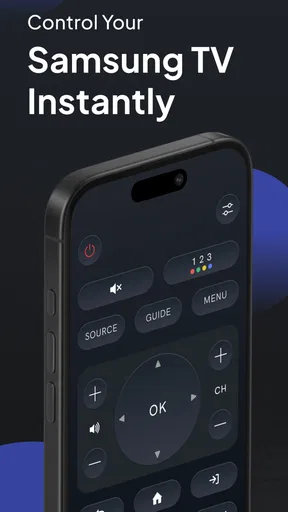
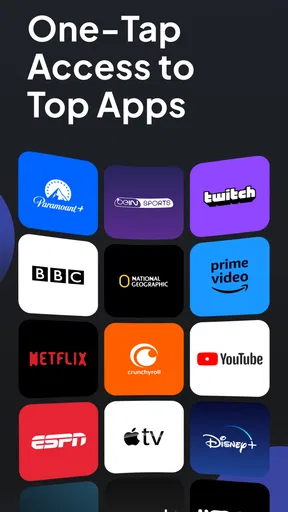
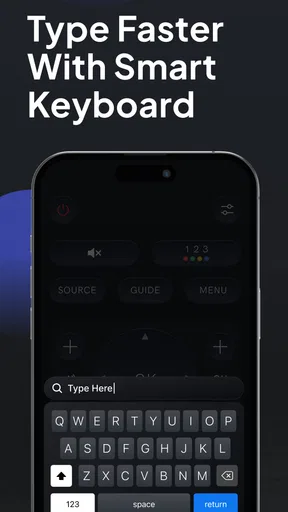
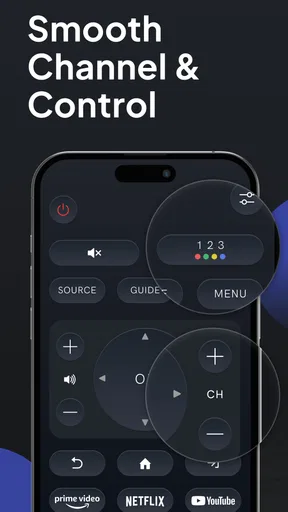
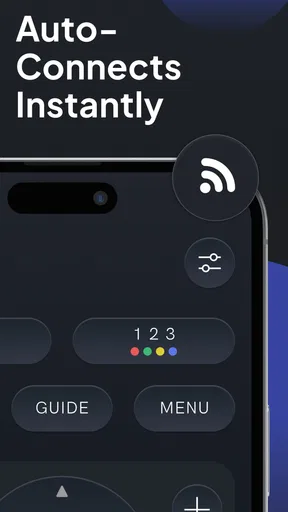
 Analysis by AppCompare
Have you ever found yourself frantically searching for the remote control, only to discover it's wedged between the couch cushions or mysteriously vanished? Let me tell you, I've been there. But guess what? There's an app that might just save us all from the eternal remote hunt. It's called Remote For Samsung Smart TV, and I've taken it for a spin to see if it lives up to the hype.
When connection is the sticking point
The most useful thing to understand before relying on a phone remote is that it is not a universal fix for every TV problem. This is a Wi-Fi-based TV remote, so the phone and television need to be able to find each other on the home network. If the app cannot see the set, repeatedly tapping the scan button is unlikely to solve a network mismatch.
For example, a guest network may keep phones separate from household devices, even when both can reach the internet. A TV connected by cable and a phone on Wi-Fi can still communicate on some home networks, but router settings may prevent it. If the connection worked before and suddenly stops, I would first check whether either device has moved to a different network rather than assuming the app has failed.
There is also a practical distinction between controlling a TV and controlling everything connected to it. The app is intended for Samsung Smart TVs; it does not turn a phone into a replacement remote for every soundbar, streaming box, or other device in the room. If you mainly need to operate an external player, its own remote or control app may still be necessary.
Your Phone as Your New Remote
First things first, setting up the Remote For Samsung Smart TV app was a breeze. Once downloaded, it prompts you to connect to your TV over Wi-Fi, which is pretty straightforward. Just make sure your TV and phone are on the same network. A quick scan, a prompt on the TV for confirmation, and voilà! You're in business. It’s like having a magic wand that controls your TV.
Setup checks that save time
If the television does not appear during setup, I would check a few basics in order: confirm the phone is connected to the intended home Wi-Fi, check that the TV is online, and make sure both are on the same local network rather than a guest connection. Then reopen the app and try finding the TV again. This simple sequence is more useful than changing several settings at once because it makes the cause easier to spot.
The on-screen confirmation matters too. When the TV asks whether to allow the connection, approve it using the physical remote or the TV’s controls. If someone else is watching, tell them before starting setup so the prompt does not look like an interruption or an unexpected request. Once paired, you can use the app as a convenient control, but you should keep the original remote nearby until you know the connection is dependable in your home.
Worth Reading Before You Choose

EA SPORTS FC Mobile 26 Is a Bigger Football Game, but It Takes Time

Flipboard Shows What News Apps Must Do Beyond the Feed

Switching to Android Auto Means Rethinking Your Driving Routine

Google Calendar Makes a Crowded Week Easier to Manage

Ludo King Makes the Most of the Minutes Between Plans

Baby Panda World Brings Quick Play to Modern Phones, but Its Game Library Feels Busy
Model support is another sensible check before making this your only remote. Samsung has many television models, and compatibility can vary. If the app does not find the set despite both devices being on the same network, check whether that TV model is supported before spending time troubleshooting the router. The app’s current version is 1.32, and it requires Android 7.0 or later; those details are worth checking if you are installing it on an older phone.
Features That Stand Out
One of the coolest things about this app is its simplicity. The interface is clean and intuitive, which means no learning curve. You get all your basic remote control functions like volume, channel change, and power. But it doesn’t stop there. This app also offers a few nifty extras:
- Touchpad Navigation: Forget the arrow keys; just swipe your way through the menu. It's as if your TV transformed into a giant smartphone.
- Keyboard Input: Typing a show name using a traditional remote is a pain, right? With the app, you can use your phone’s keyboard. Searching on Netflix just got a whole lot easier.
- Voice Control: Feeling lazy? Just tap the mic icon and speak your command. It’s not perfect, but it’s definitely handy.
These extras are most valuable in particular situations, rather than as reasons to abandon every other control method. I find keyboard input especially useful for entering a long title or searching with a word that is awkward to spell using directional buttons. Touch navigation can make browsing menus feel quicker, but it depends on how you prefer to move a selection around the screen; some people will still find physical arrow keys more predictable.
Voice control is best treated as a shortcut, not the main way to operate the TV. If it misunderstands a title or command, typing it on the phone or returning to the TV’s normal controls is a practical fallback. That is a useful trade-off: the app gives you more than buttons, but the extras do not make every task easier for every person.
Performance and Compatibility
Now, let’s talk performance. The app is pretty responsive, with minimal lag. It’s not instantaneous, but it’s close enough that you won’t notice unless you’re looking for it. As for compatibility, while it's designed for Samsung Smart TVs, be sure to check if your TV model is supported. Most recent models are covered, but double-checking never hurts.
For everyday commands, a small delay is usually less important than having the controls close at hand. It becomes more noticeable if you are pressing buttons repeatedly because a response did not register. My advice is to pause briefly after a command, especially while the TV is responding to a menu change, rather than sending several taps in quick succession. That makes it easier to tell whether the connection is slow or whether the first command simply needs a moment.
Everyday Use and Practicality
Using the app daily, I found it surprisingly convenient. I mean, we're all glued to our phones anyway, so why not use it as a remote too? The app is especially handy for those moments when the physical remote is out of reach or when you want to quickly switch channels without fumbling in the dark.
A realistic example is settling in to watch something after the TV remote has been left on a shelf across the room. Rather than getting up, you can use the phone already in your hand to adjust the volume or browse. It is also handy when the remote has slipped under a blanket and you do not want to pause what you are doing to search for it. For a household with several compatible Samsung TVs on the same network, the idea of controlling more than one set can be useful, though it is still important to check that the app connects to the intended screen before changing anything.
This is where the app compares well with the usual alternatives. A physical remote is dependable without Wi-Fi and is often the better choice for long viewing sessions, quick button presses, or guests who do not want to install an app. The phone app wins when a remote is misplaced or when typing on the TV is tedious. Samsung’s own TV controls and other remote apps may suit some households better, but this app’s appeal is its straightforward phone-based access. I would keep the TV’s original remote as a backup rather than treating the two options as competitors.
It is also not ideal for every user. If your phone is usually charging in another room, if you do not want to keep it connected to the home network, or if the TV is not a supported Smart TV, a physical remote is simpler. Someone who regularly watches with other people may also prefer a dedicated remote that anyone can pick up without unlocking a phone or opening an app.
Plus, the battery drain on the phone is negligible, so you don't have to worry about it zapping your phone's life. It's like having a backup remote that's always charged and harder to lose.
Room for Improvement
While the app is a lifesaver, it’s not without its flaws. The voice control, though useful, can be hit or miss. Sometimes it nails it, and other times it misinterprets commands. Also, the app relies heavily on Wi-Fi. If your network is down or unstable, you're out of luck.
If it stops responding after working normally, I would close and reopen the app, verify the network connection on both devices, and try again. If other devices are also struggling to connect at home, the problem is more likely to be the network than the TV remote app. If only this television is missing, check its connection and model compatibility before changing router settings. These are basic checks, not a guarantee that every connection issue can be fixed from the phone.
Another thing to note is that the app includes ads. While they’re not too invasive, they can be a bit annoying. There is an option to remove them for a small fee, which is something to consider if they start to bug you.
The app is free to download, with in-app purchases listed from $25.00 to $44.99 per item. I would try the free version first and decide whether the ads or your regular use make a paid option worthwhile. It has an Everyone content rating, and ControllaTV is the developer. The app has a 4.3 average from around 201,000 ratings, with about 1,200 written reviews, and over 10 million installs. Those figures suggest it has reached a broad audience, but they do not replace checking whether it works with your specific TV and network.
When the TV or network is the real issue
It is tempting to blame the app whenever a button does nothing, but a phone remote cannot repair a television that is offline or a home network that is dropping connections. If the TV is slow to respond to its own controls too, the trouble may be with the set or the service you are trying to use, not the app. Likewise, if only one streaming app is behaving oddly, switching the TV’s volume or navigating its menus with a phone remote will not fix that service.
For this reason, I would separate the problem into small tests. Does the TV respond to its original remote? Can the phone reach the internet? Can the app find the TV again after both devices are confirmed on the same network? Each answer narrows down where to look without encouraging unnecessary resets. If the physical remote works but the phone cannot find the TV, focus on network connection and compatibility. If neither control method works properly, investigate the television itself.
One useful habit is to avoid making the phone app the only control available before guests arrive or before a long viewing session. Keep the physical remote accessible until you have confirmed the app works reliably after reopening it and reconnecting at home. That small bit of preparation avoids turning a convenient backup into a new point of friction.
Final Thoughts
In a world where everything is becoming smart, the Remote For Samsung Smart TV app is a welcome addition. It turns your phone into a versatile remote control, packed with features that make managing your TV a breeze. Sure, it has a few quirks, but what doesn’t?
If you’re tired of losing your remote or just want a more convenient way to interact with your Samsung Smart TV, give this app a shot. It’s like adding a new dimension to your TV experience, and honestly, who doesn’t want that?
So, what are you waiting for? Dive into the digital age of remote control with the Remote For Samsung Smart TV app. You might just find it hard to go back to the old way of doing things.
Pros
- Easy setup process with quick pairing.
- User-friendly interface for all ages.
- Supports voice commands for convenience.
- Customizable buttons for quick access.
- Works with multiple Samsung TV models.
Cons
- Limited to Samsung Smart TVs only.
- Requires stable Wi-Fi connection.
- Ads can be intrusive at times.
- Some features require in-app purchases.
- Minor lag in response occasionally.
FAQs for Remote For Samsung Smart TV
How do I connect the Remote For Samsung Smart TV app to my television?
To connect the Remote For Samsung Smart TV app to your television, ensure both your TV and smartphone are on the same Wi-Fi network. Open the app, and it will automatically scan for available Samsung Smart TVs. Select your TV from the list, and follow any on-screen prompts to complete the pairing process.
Is the Remote For Samsung Smart TV app compatible with all Samsung TV models?
The app is designed to work with most Samsung Smart TVs manufactured in recent years. However, older models or those without smart features may not be supported. For optimal compatibility, check the app's description for a list of supported models before downloading.
What features does the Remote For Samsung Smart TV app offer?
The app offers a range of features, including basic remote functionalities like volume and channel control, as well as advanced options such as keyboard input for easy text entry, touchpad navigation, and quick access to streaming apps. It also supports voice commands for hands-free operation on compatible devices.
Are there any in-app purchases or subscription fees?
While the basic version of the Remote For Samsung Smart TV app is free to download, it may include in-app purchases or subscription options for additional features. These could include ad-free usage, enhanced remote functionalities, or premium support. Review the app's pricing details in the app store for more information.
What should I do if the app is not working properly?
If the Remote For Samsung Smart TV app is not working properly, first ensure your devices are on the same Wi-Fi network and that the app has the necessary permissions. Restart the app and your TV. If issues persist, check for app updates or consult the app's support page for troubleshooting guides and contact options.


